Connect a Cloud
This page walks through connecting a cloud provider account to Cadence.CI and explains how instance selection works once it’s connected. See Integration with Cloud Providers for the architecture behind this.
Connect a Provider Account
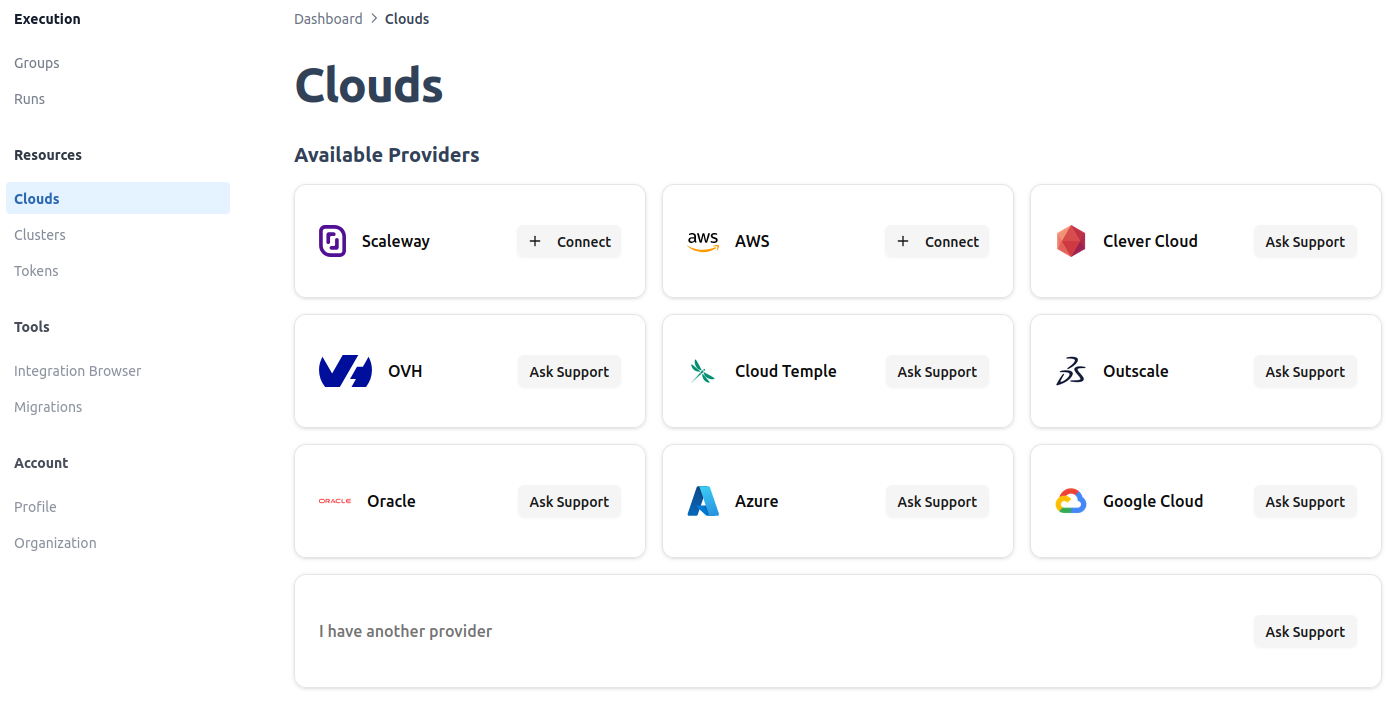
- Open the Clouds section of the dashboard.
-
Under Available Providers, find your provider (see the supported providers) and click Connect.
-
Fill in the connection form. The fields differ slightly by provider:
- Scaleway: a name for the account, your Scaleway API key, your project ID, and a zone (e.g.
fr-par-1). - AWS: a name for the account, an access key ID, a secret access key, your AWS account ID, and a region (e.g.
eu-west-1).
- Scaleway: a name for the account, your Scaleway API key, your project ID, and a zone (e.g.
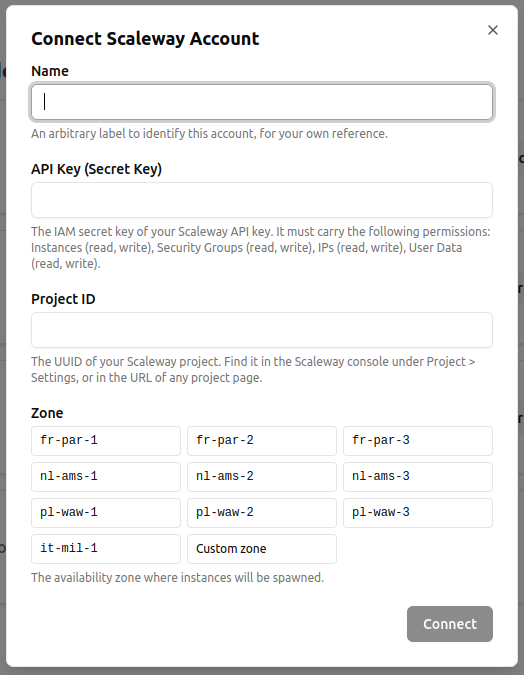
These are the credentials of your own cloud account. Cadence.CI uses them to provision and manage instances directly inside your project, nothing runs on shared infrastructure for this path.
- Submit the form. The account now appears under Connected Accounts.
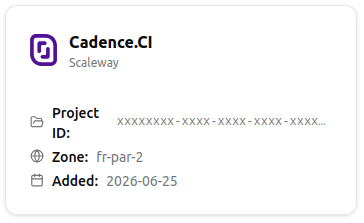
Repeat this for as many provider accounts as you need. You can connect multiple accounts, including several accounts on the same provider (for example, one per environment or team).
How Instance Selection Works
Once at least one provider account is connected, Cadence.CI can spawn runners for your pipeline runs automatically. Your Mélodium pipeline declares what it needs, and Cadence.CI finds the smallest instance that satisfies it, the choice of instance type is automatic.
What the Pipeline Declares
A simpleStep (or the engine itself, for the distributed Mélodium process) can request:
cpu, in millicoresmemory, in mebibytesstorage, in mebibytesarch, the target CPU architecture (ARM64 or AMD64/x86_64)
These are minimums that Cadence.CI turns into an instance type at spawn time, the pipeline itself stays provider-agnostic.
How the Match Happens
When a run needs a runner, Cadence.CI looks at every connected provider account in the organization and, for each one, lists its available instance types and images. It keeps only the candidates that match the requested architecture, meet or exceed the requested CPU, memory, and storage, and have a compatible image available in the account’s zone.
Among those candidates, across all connected accounts and providers, it picks the smallest one: the instance type whose combined CPU, memory, and storage is lowest while still meeting every requirement. This is a best-fit selection based purely on requested resources, since instance pricing isn’t part of what providers report back.
If every connected account turns out too restricted, for example limited to a zone or architecture that only offers smaller instances, the run is marked Unschedulable with an explanation. Reducing the requested resources or connecting an account with a larger instance catalog resolves this on the next run.
Reviewing What’s Available
Each connected account has Instances, Instance Types, and Images tabs where you can see exactly what Cadence.CI sees: the catalog it selects from, and the instances it has actually spawned.
- Open a connected account from Clouds > Connected Accounts.

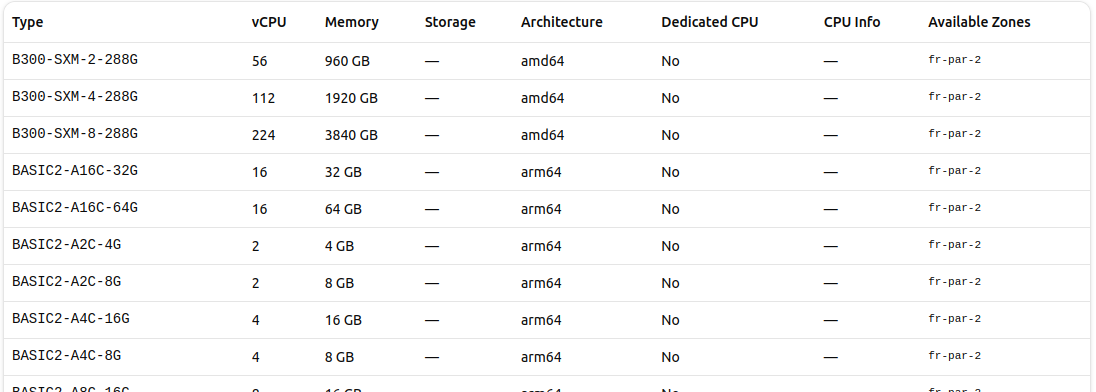
- The Instance Types tab lists every instance type available in your account, with vCPU, memory, storage, architecture, and the zones it’s available in, this is the catalog instance selection picks from.
- The Images tab lists the OS images available per zone and architecture.

- The Instances tab shows every instance Cadence.CI has spawned on this account, past and present, with its status, instance type, zone, IP addresses, and a link to the run it belongs to.

Going Further
- Integration with Cloud Providers, the architecture behind provider connections.
- View Results, what happens once a run is scheduled on an instance.