Connect a Cloud
Cadence.CI runs the steps of your pipelines on machines it starts in your cloud account, and stops them when the step is done. This page shows how to connect an account, what the dashboard tells you about it, and how Cadence.CI picks a machine for each step. Integration with Cloud Providers explains the architecture behind it.
The Clouds Page
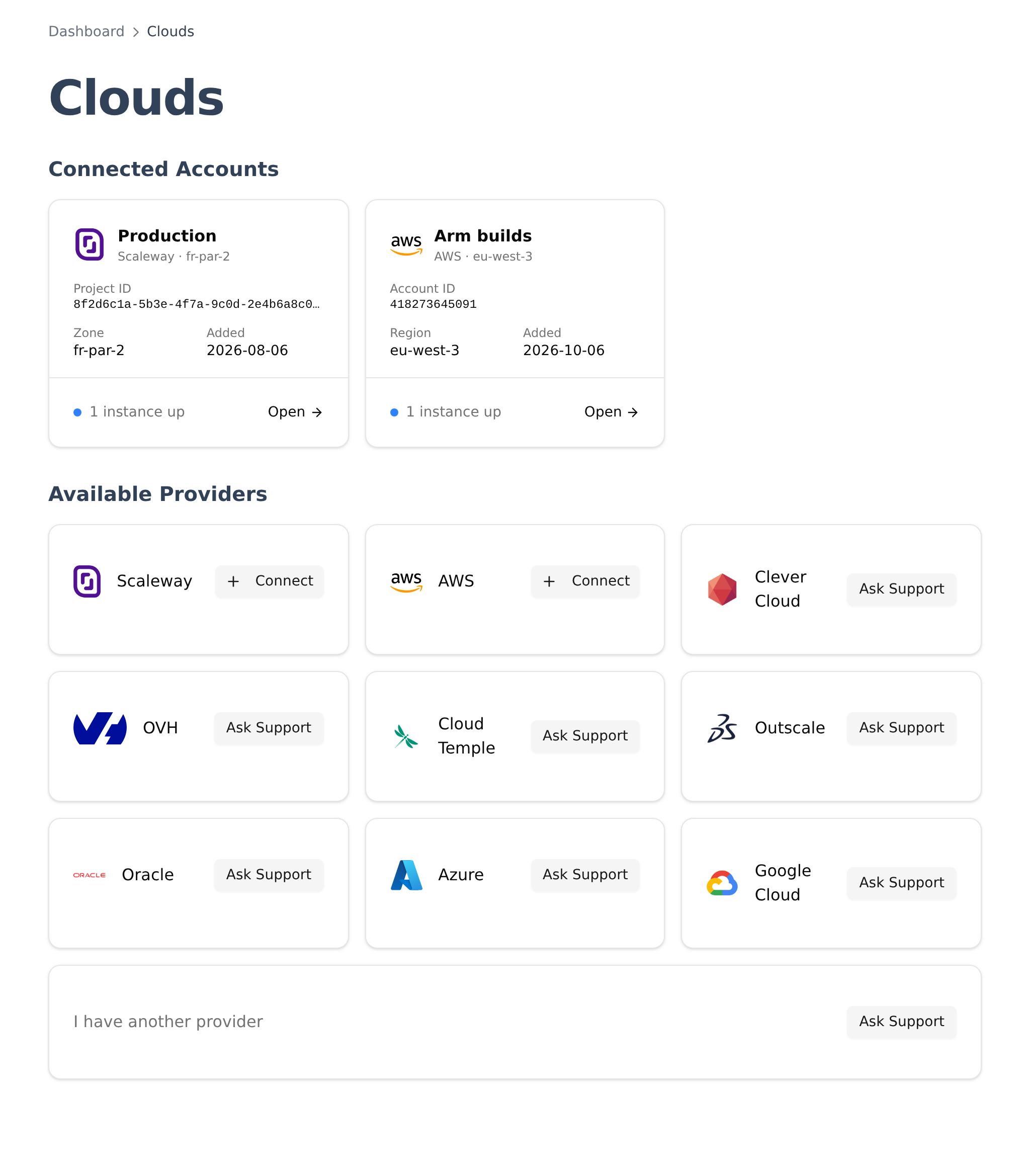
Open Clouds, under Resources. It has two parts:
- Connected Accounts: one tile per account you connected. A tile tells which provider and zone the account uses, its project or account ID, when it was added, and how many machines are up in it right now. Click a tile to open the account.
- Available Providers: the supported providers, each with a Connect button, then the providers to come. Ask Support tells us which one you are waiting for.
Connect an Account
-
On the tile of your provider, click Connect.
-
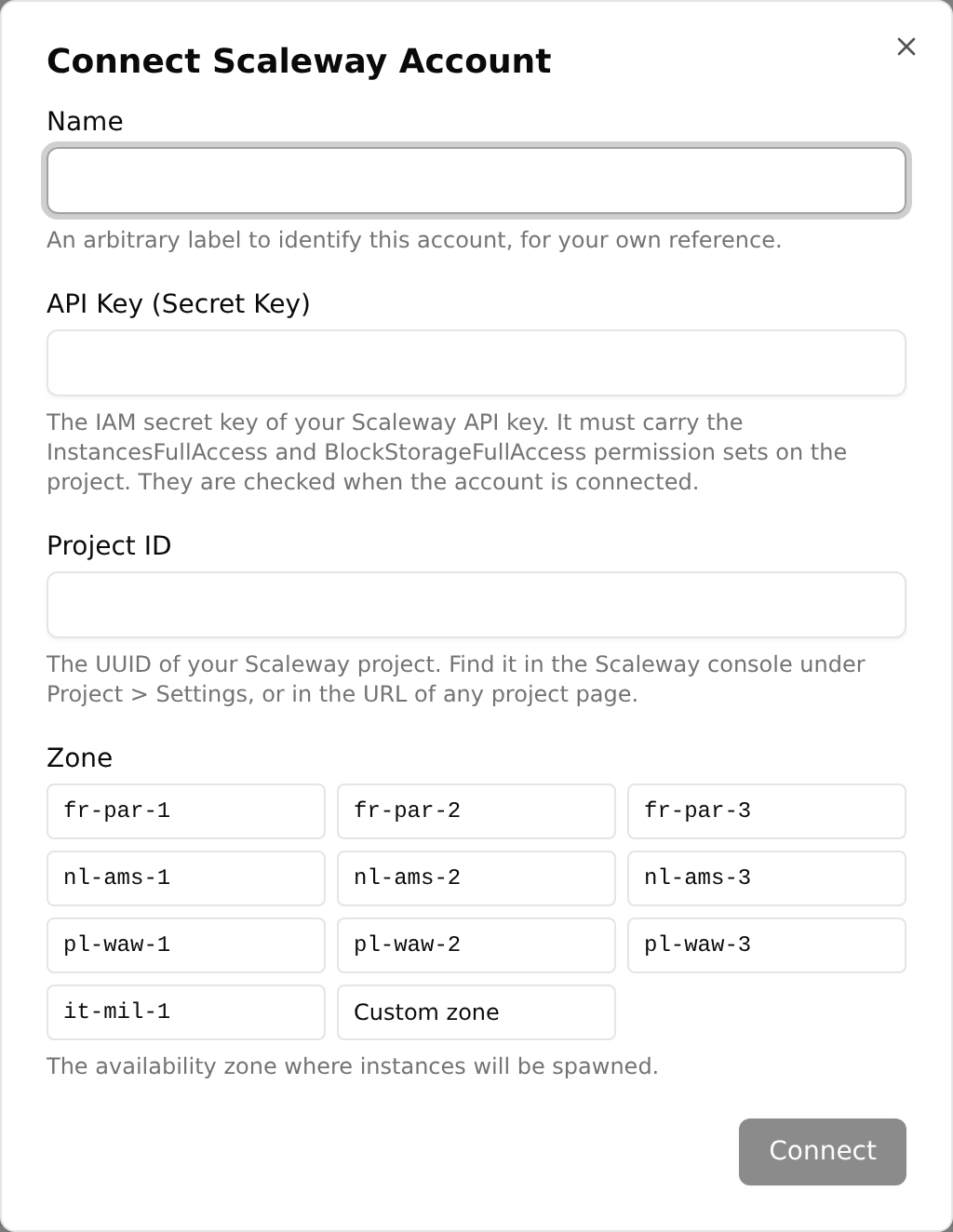
Fill in the form. The fields depend on the provider:
- Scaleway: a name for the account, an API secret key, the project ID, and a zone such as
fr-par-2. - AWS: a name for the account, an access key ID and its secret access key, the 12-digit account ID, and a region such as
eu-west-3.
Under each field, a line says where to find the value and which permissions the key needs.
- Scaleway: a name for the account, an API secret key, the project ID, and a zone such as
-
Click Connect. The account appears under Connected Accounts.
The keys are those of your own cloud account. Cadence.CI keeps them encrypted, never shows them again, and uses them only to start, watch and stop the machines of your runs in that account. Connect as many accounts as you need, several per provider if you like: one per environment or per team, for instance.
An Account’s Page
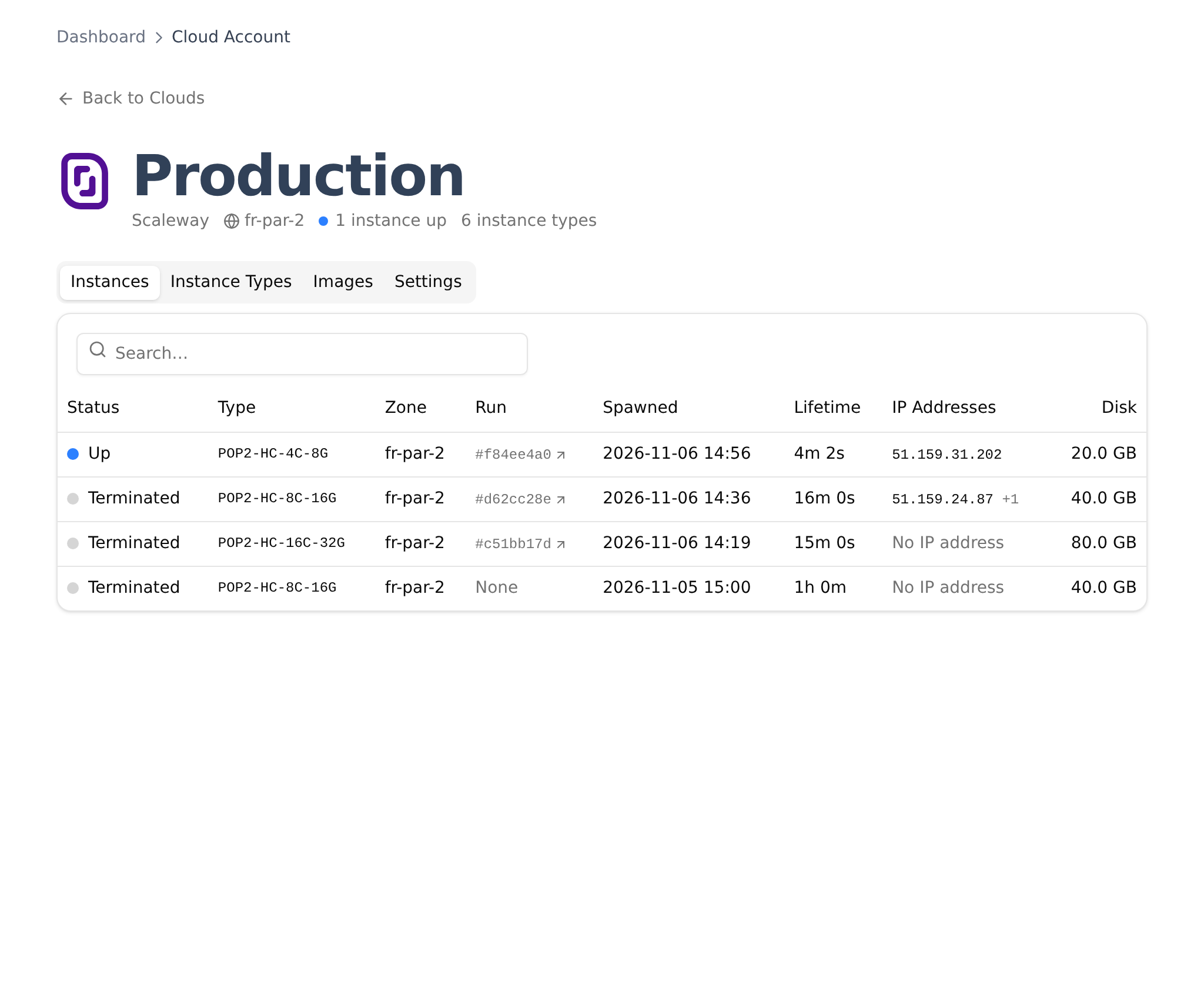
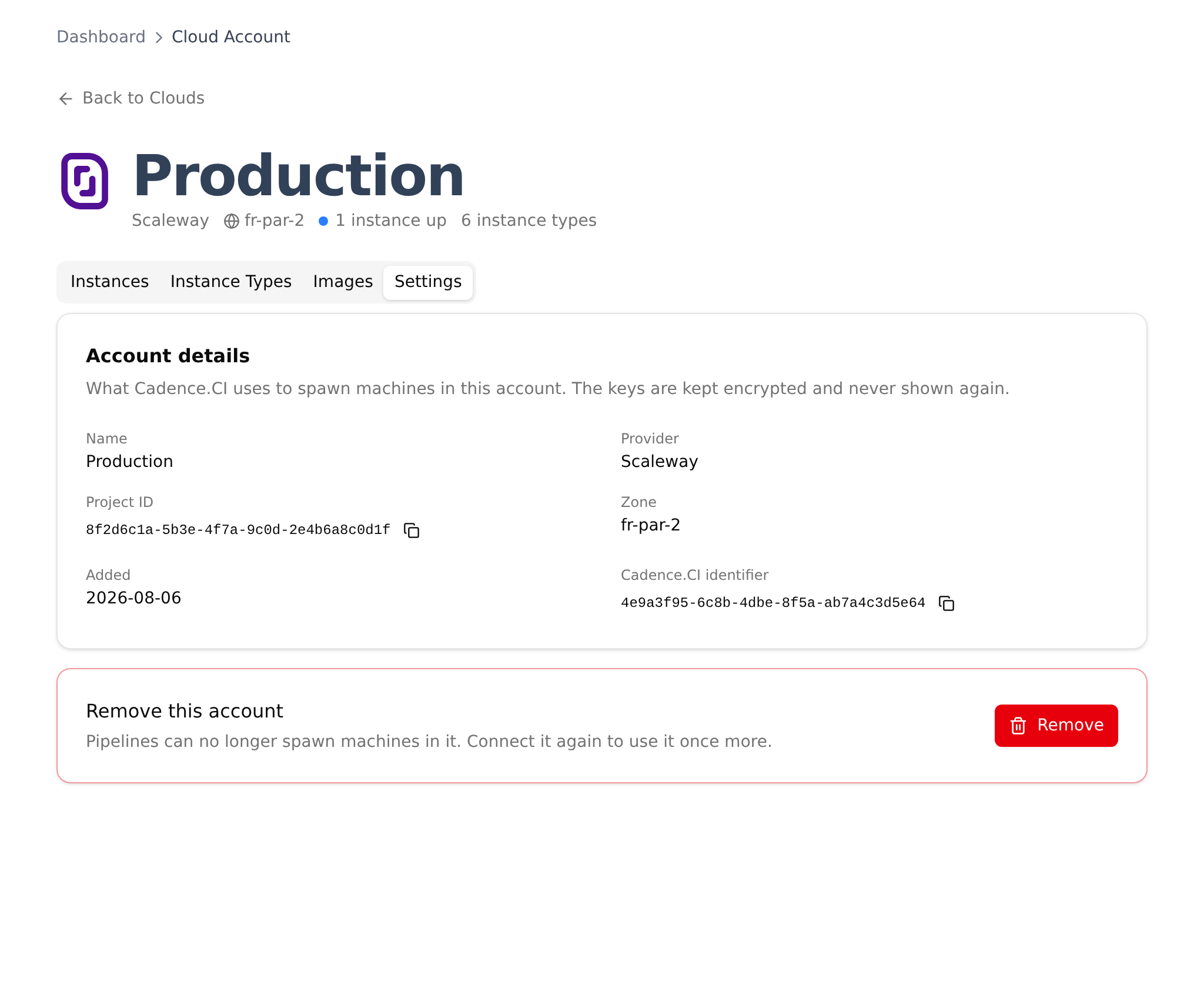
Click a connected account to open its page. Under its name, a line sums it up: the provider, the zone, how many machines are up, and how many instance types the account offers. Four tabs follow.
Instances
Every machine Cadence.CI started in this account, newest first:
| Column | Meaning |
|---|---|
| Status | Up while the machine exists, Terminated once it is gone. |
| Type | The instance type chosen for the step. |
| Zone | Where the machine runs. |
| Run | The run it was started for; click to open it. |
| Spawned and Lifetime | When it started, and how long it lived, or has lived so far. |
| IP Addresses | Its first address, and how many others it has. |
| Disk | The size of its disk. |
Click a line to open the machine’s own page. The search field filters on any column.
Instance Types and Images
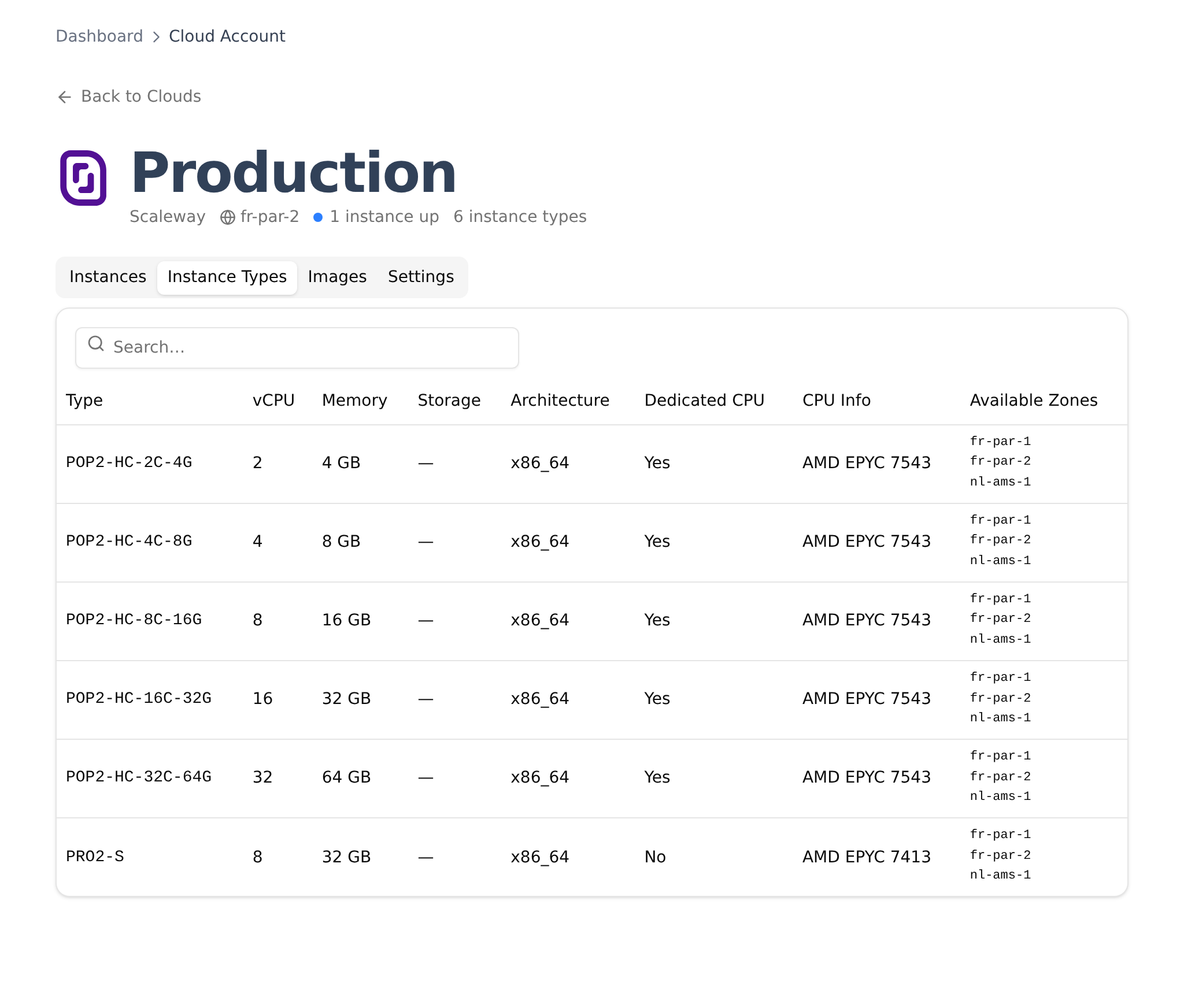
Instance Types is the catalog Cadence.CI picks from: each type with its vCPUs, memory, architecture, whether its CPU is dedicated, and the zones offering it. Images lists the system images available in the account’s zone, per architecture.
Settings
Account details lists what Cadence.CI knows of the account: its name, provider, project or account ID, zone, the date it was added, and its identifier on Cadence.CI. The copy buttons put an ID on your clipboard, to find the project in your provider’s console for instance.
Below, Remove this account disconnects it: pipelines can no longer start machines in it. Connect it again to use it once more.
A Machine’s Page
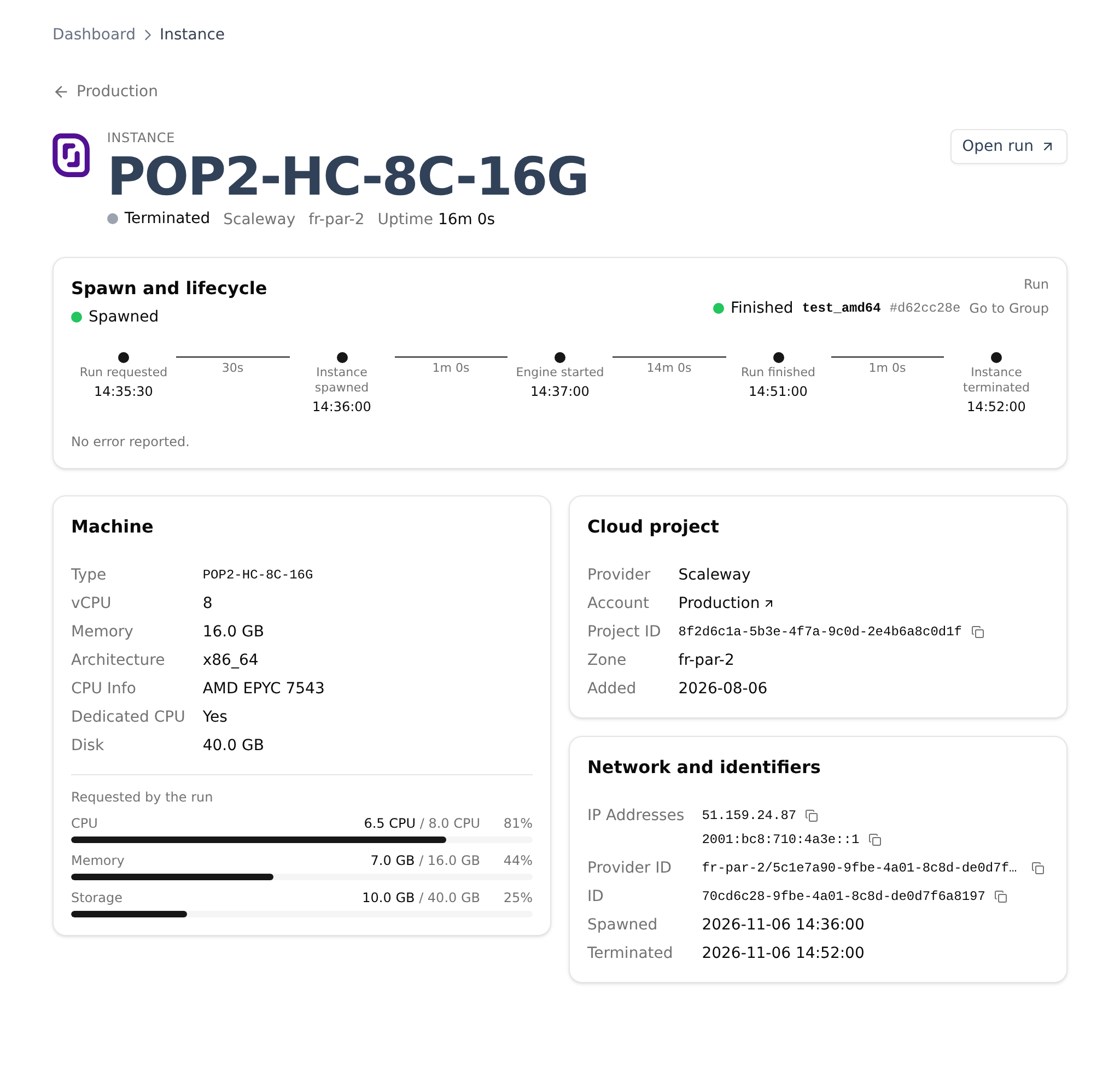
The page of a machine tells its whole life, which helps when a step was slow to start or failed before running:
- the header gives its type, its state (booting, running, terminating, terminated), its provider, zone and uptime, and opens its run;
- Spawn and lifecycle draws the steps from the run’s request to the machine’s end, with the time between each: requested, spawned, engine started, run finished, terminated. Errors the run reported are listed below;
- Machine gives what the instance type provides, and bars of what the run asked for against it: CPU, memory and storage;
- Cloud project and Network and identifiers give the account, the zone, the IP addresses and the IDs, each with a copy button.
How Cadence.CI Picks a Machine
Once an account is connected, Cadence.CI starts machines for your runs by itself. Your program says what each step needs, and Cadence.CI finds the smallest machine that fits.
What the Program Declares
A step, or the engine itself for the distributed Mélodium process, can ask for:
cpu, in millicores;memory, in mebibytes;storage, in mebibytes;arch, the CPU architecture: ARM64 or AMD64 (x86_64).
These are minimums. The program never names a provider or an instance type, so it runs the same on any account.
How the Match Happens
When a run needs a machine, Cadence.CI looks at every connected account of the organization, with its instance types and images. It keeps the types that have the requested architecture, at least the requested CPU, memory and storage, and a matching image in the account’s zone.
Among them, across all accounts and providers, it picks the smallest: the type whose CPU, memory and storage together are the lowest while meeting every need. The choice is about resources only, since providers do not report prices.
If no account offers a type large enough, for instance because its zone or architecture only has smaller ones, the run is marked Unschedulable, with the reason. Ask for fewer resources, or connect an account with larger types, and the next run gets its machine.
Going Further
- Integration with Cloud Providers: the architecture behind connected accounts.
- Where It Runs: sending steps to your cloud, or keeping them local.
- View Results: what happens once a run has its machine.