Storage
Caches and run artifacts are kept in object storage: Cadence.CI storage, or buckets of your own, in the cloud account and the region you choose. Either way, workers and browsers send and receive the bytes straight from storage, through links Cadence.CI signs for each transfer.
The Storage Page
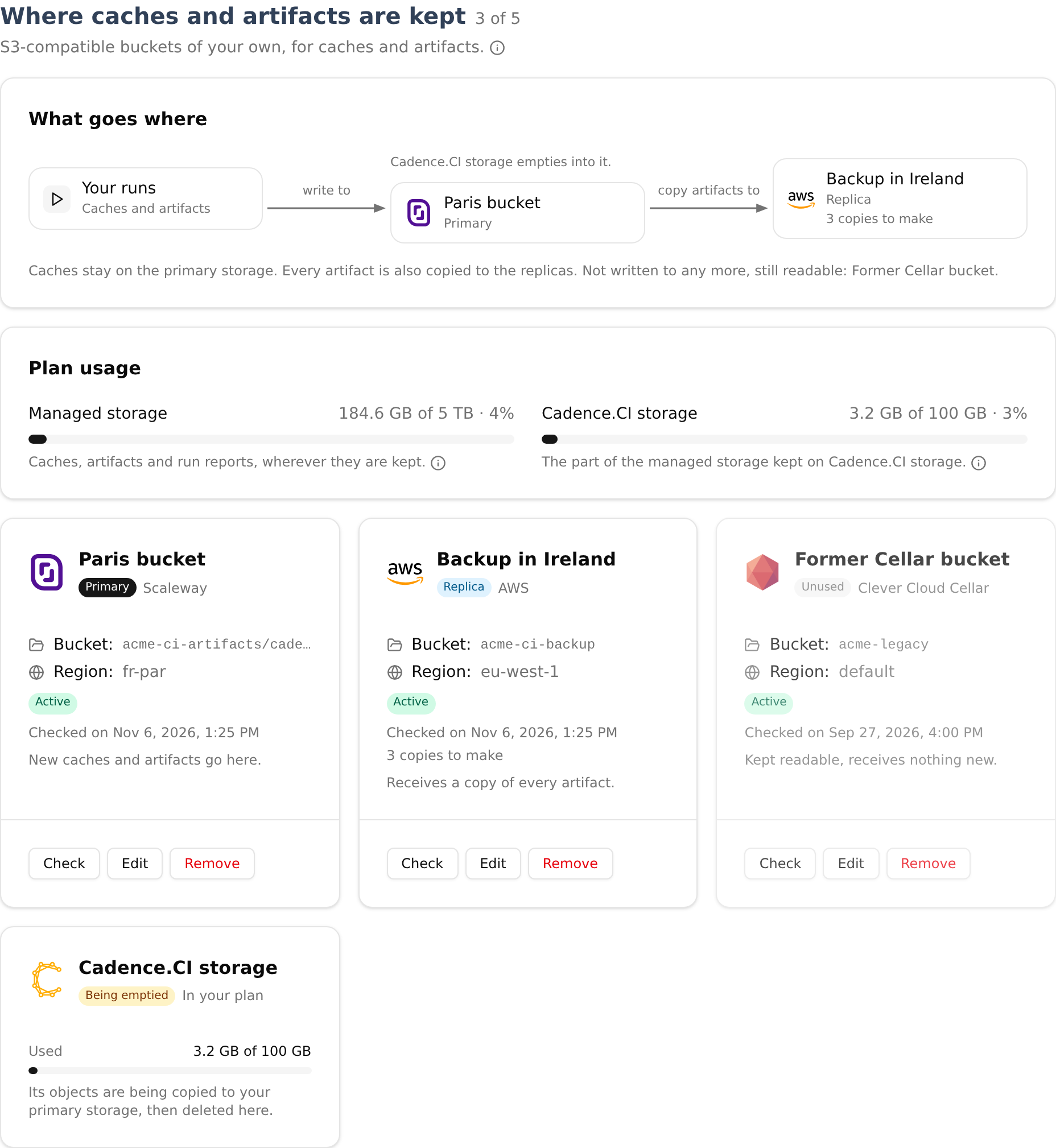
Open Storage, under Resources. From top to bottom:
- Where caches and artifacts are kept, the storages of the organization:
- What goes where draws the path of your data: your runs write caches and artifacts to the primary storage, which copies artifacts to the replicas. While Cadence.CI storage still holds objects from before your own storage, it says so, as they move to your primary. The line below sums it up, and names the storages no longer written to.
- Plan usage shows the managed storage and Cadence.CI storage against the limits of your plan (see Managed Storage).
- One tile per storage, like the tiles of cloud accounts: its name, its role, its provider, its bucket and region, whether its last check passed and when, and the copies it still has to receive. Administrators Check, Edit or Remove it from there. The Cadence.CI storage tile is always there, with what it holds.
- Caches: every cache with its size, when it was last used and written, and the cache scopes.
- Artifacts: every artifact of the organization, with filters (see Run Artifacts).
- Add a storage: one tile per provider, as on the Clouds page (see Adding a Storage).
Members see the caches, the artifacts and the plan usage; storages are shown to administrators. Get Artifact Token, at the top, leads to the Keys page with the form of an artifact token open.
Managed Storage
Everything Cadence.CI takes care of for the organization is its managed storage: caches and artifacts wherever they are kept, on Cadence.CI storage or on buckets of your own, and the reports of its runs (logs, debug events and programs). Each object counts once, however many buckets hold a copy, uploads in progress included.
Cadence.CI storage is the storage Cadence.CI runs itself, used by organizations without storage of their own. What is kept there is part of the managed storage, with a smaller limit of its own. Each plan sets both, and how many buckets of your own the organization may add:
| Plan | Managed storage | Of which on Cadence.CI storage | Buckets of your own |
|---|---|---|---|
| Without a plan | 100 GB | 10 GB | 1 |
| Basic | 5 TB | 100 GB | 5 |
| Pro | 20 TB | 100 GB | 15 |
| Open-source | 5 TB | 100 GB | 5 |
The pricing page shows these limits as Cadence.CI applies them, and the plan panel of the Organization page shows those of your organization, with what it uses.
When an upload does not fit in either limit, the least recently used cache versions are evicted first, replaced versions before the others. Artifacts stay until they expire: when evicting caches is not enough, the upload is refused and the run says so. When a plan ends or moves to a smaller one, caches are evicted until the organization fits again; artifacts are never evicted. The Plan usage card of the Storage page shows the managed storage and Cadence.CI storage against their limits; the second only while Cadence.CI storage is used. The Organization page compares the quotas of every plan.
Storage of Your Own
Administrators add a bucket from any S3-compatible object storage, on the Storage page of the dashboard. From then on, caches and artifacts go to that bucket: you pay your provider for what you keep, as for your instances, and artifacts are kept as long as your programs ask. They still count towards the managed storage, not towards Cadence.CI storage. The plan sets how many buckets the organization may add: adding one more is refused, and after a move to a smaller plan the buckets already added keep working.
- The keys are the bucket’s own: an access key and its secret key for this bucket, never those of your cloud account. Cadence.CI keeps them encrypted as a platform secret, listed on the Secrets page, which runs never read and nobody reads back. Use keys that do not expire: the links Cadence.CI signs with them last up to 12 hours.
- A path prefix lets several organizations or tools share a bucket: every key Cadence.CI writes goes under it. Caches are kept under identifiers, never under their names; artifacts are kept next to the reports of their run, under their names and the paths of their files (see the manifest).
- Your storage stays the place: when your primary bucket fails, cache restores miss and cache saves are skipped, both with a warning on the run, and artifact pushes fail, naming the bucket and the error. Even then, your data only ever goes to your own storage.
Adding a Storage
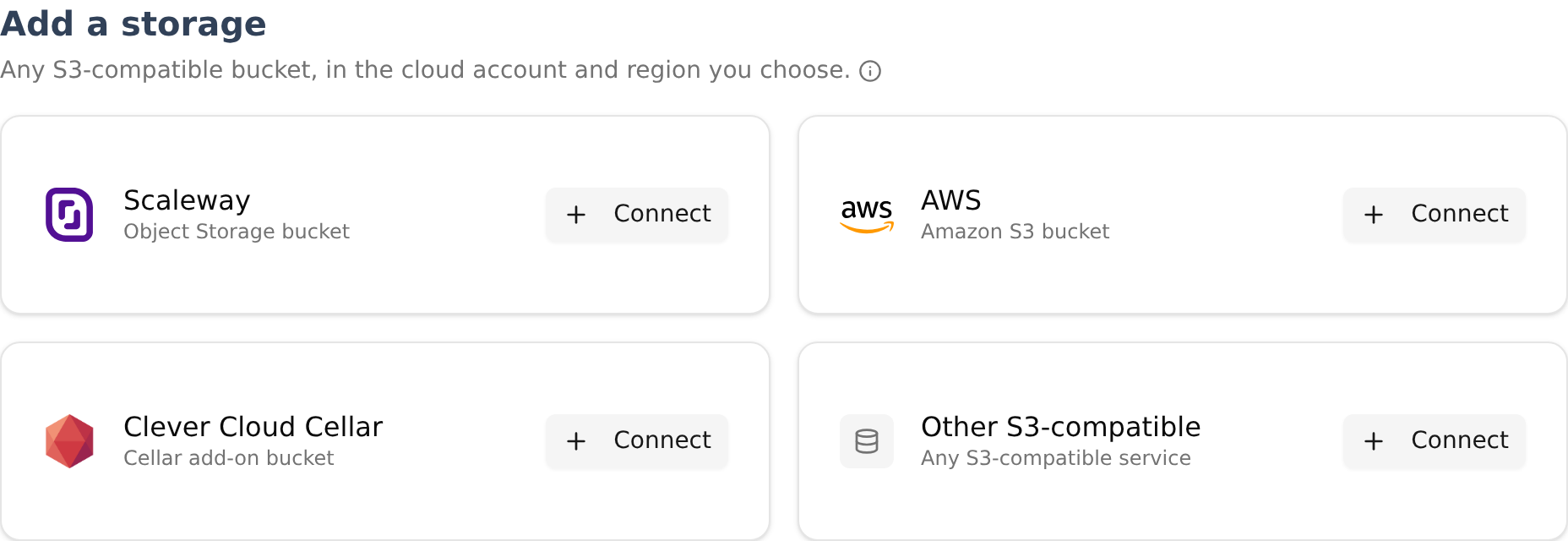
- Under Add a storage, at the bottom of the Storage page, click Connect on the tile of your provider: Scaleway, AWS, Clever Cloud Cellar, or any other S3-compatible service.
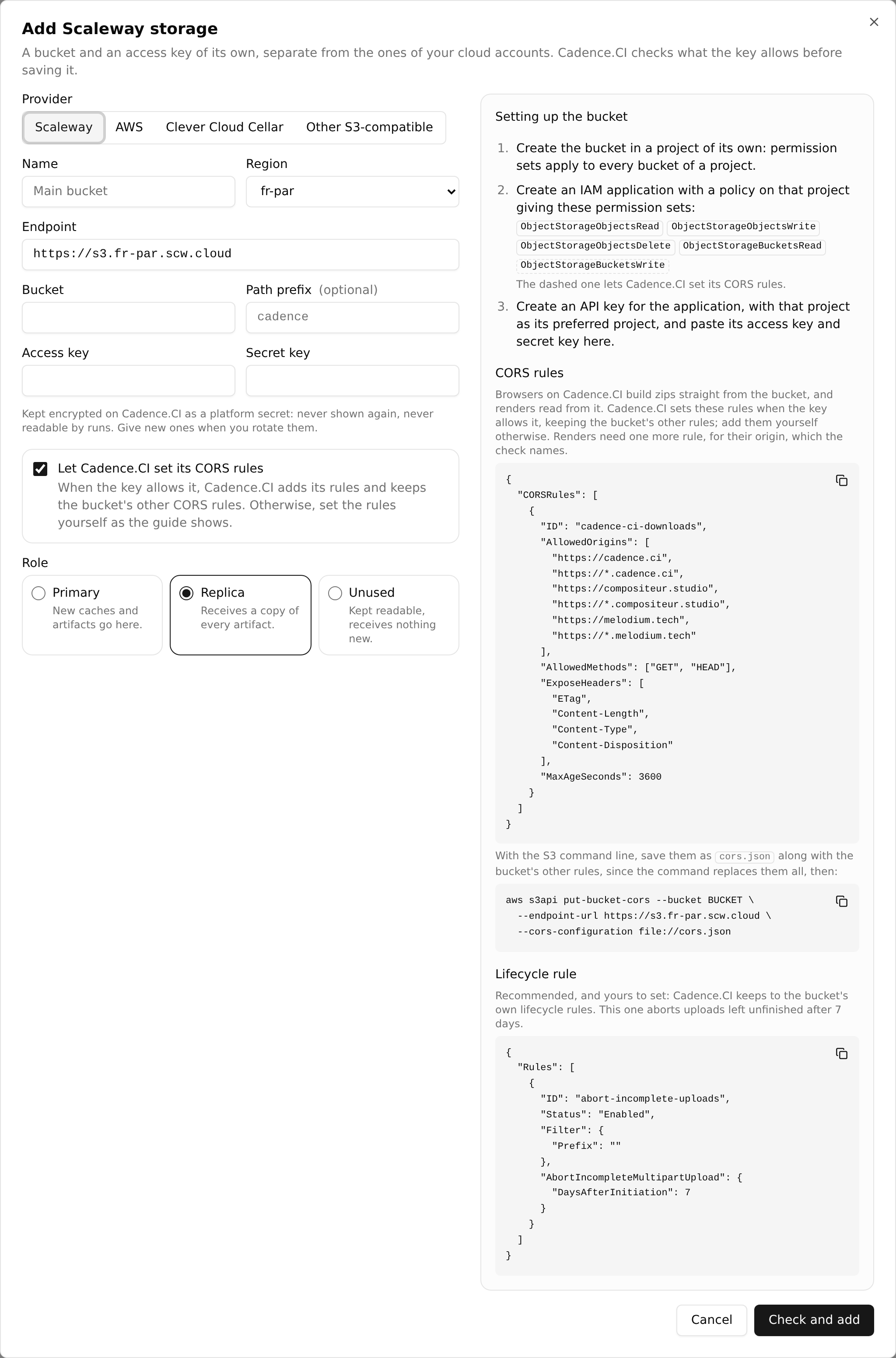
- Fill in the form. It fills the endpoint and the region for the known providers. Next to the fields, a guide gives the permissions the key needs, the CORS rules and a lifecycle rule for your provider (see Setting Up a Bucket).
- Choose its role: the first storage becomes the primary.
- Click Check and add. Cadence.CI checks the bucket with the key before saving anything. A failing step names the permission the key lacks; warnings, such as missing CORS rules, let you Add anyway.
When the plan allows no more storages, the Connect buttons say so and stay disabled; storages already added keep working.
Roles
| Role | Receives |
|---|---|
| Primary | New caches and artifacts. One at most; the first bucket added becomes the primary. |
| Replica | A copy of every artifact (see Replication). |
| Unused | Nothing new. |
What a bucket holds stays readable whatever its role. Making a bucket primary makes the previous one unused, and artifacts are copied to the new primary like to any replica.
The Check
Every bucket is checked before it is added, when an administrator asks, and every hour, every ten minutes while it fails. With probe objects under <prefix>/cadence-ci-check/, removed afterwards, the check writes and reads an object, downloads it as a browser on Cadence.CI would, and as a render would where renders are available, uploads one in parts, aborts an upload in parts, and deletes an object. A failing step names the permission the key lacks. A bucket whose check fails is shown as failing on its tile, and becomes active again once a check passes.
Browsers on Cadence.CI build zips of several files straight from the bucket, and renders read from it, which needs CORS rules allowing GET from Cadence.CI’s sites and from the domain of renders. Without them, the check gives a warning naming each refused origin, and the bucket can still be added. Cadence.CI sets these rules itself when you let it and the key allows it, keeping the other CORS rules of the bucket.
Setting Up a Bucket
The form of the Storage page fills the endpoint and the region for Scaleway, AWS and Clever Cloud Cellar, and shows these steps next to the fields.
Scaleway. Create the bucket in a project of its own: permission sets apply to every bucket of a project. Create an IAM application with a policy on that project giving ObjectStorageObjectsRead, ObjectStorageObjectsWrite, ObjectStorageObjectsDelete and ObjectStorageBucketsRead, plus ObjectStorageBucketsWrite for Cadence.CI to set its CORS rules. Then create an API key for the application, with the bucket’s project as its preferred project. The endpoint is https://s3.<region>.scw.cloud, such as https://s3.fr-par.scw.cloud.
AWS. Create an IAM user with this policy, limited to the bucket; s3:GetBucketCORS and s3:PutBucketCORS let Cadence.CI set its CORS rules:
{
  "Version": "2012-10-17",
  "Statement": [
    {
      "Effect": "Allow",
      "Action": ["s3:GetObject", "s3:PutObject", "s3:DeleteObject", "s3:AbortMultipartUpload"],
      "Resource": "arn:aws:s3:::BUCKET/*"
    },
    {
      "Effect": "Allow",
      "Action": ["s3:ListBucket", "s3:GetBucketCORS", "s3:PutBucketCORS"],
      "Resource": "arn:aws:s3:::BUCKET"
    }
  ]
}
Then create an access key for the user. The endpoint is https://s3.<region>.amazonaws.com.
Clever Cloud Cellar. Create a Cellar add-on for the bucket alone: an add-on has a single key, which reads, writes and sets the CORS rules of every bucket of the add-on. Create the bucket in it, and give the add-on’s CELLAR_ADDON_KEY_ID as access key and CELLAR_ADDON_KEY_SECRET as secret key. The endpoint is https://cellar-c2.services.clever-cloud.com and the region default; bucket names holding dots use path-style addresses.
Other S3-compatible storage, such as OVHcloud, Outscale, Cloud Temple or MinIO: give the endpoint and the region from its documentation, and tick path-style addresses when it serves buckets as <endpoint>/<bucket>. The key needs to read, write and delete the bucket’s objects, abort its uploads in parts and list it, and to read and write its CORS rules for Cadence.CI to set them.
The rule for Cadence.CI’s sites, to set yourself otherwise, with the S3 command line (aws s3api put-bucket-cors --bucket BUCKET --endpoint-url ENDPOINT --cors-configuration file://cors.json). The command replaces the whole CORS configuration of the bucket: put its other rules in the same file. Renders need a second rule, allowing the same methods from the domain of renders: the guide beside the form of the Storage page shows both rules, exactly as Cadence.CI sets them. Services refusing origins written https://*. take the three others alone, and subdomains then fail:
{
  "CORSRules": [
    {
      "ID": "cadence-ci-downloads",
      "AllowedOrigins": [
        "https://cadence.ci", "https://*.cadence.ci",
        "https://compositeur.studio", "https://*.compositeur.studio",
        "https://melodium.tech", "https://*.melodium.tech"
      ],
      "AllowedMethods": ["GET", "HEAD"],
      "ExposeHeaders": ["ETag", "Content-Length", "Content-Type", "Content-Disposition"],
      "MaxAgeSeconds": 3600
    }
  ]
}
Lifecycle rules are yours: a rule aborting uploads left unfinished after a few days is a good safety net, although Cadence.CI aborts the ones it abandons.
Replication
Artifacts are copied to every active primary and replica bucket of the organization. They survive the loss of a bucket, stay readable while a provider is down, and can be kept with several providers or in several jurisdictions.
- A worker uploads an artifact once, to the primary, or to an active replica when the primary fails. Cadence.CI then copies it to the other buckets, under the same keys, streaming each file through memory without storing it, and checks its SHA-256 before completing the copy.
- A copy that fails is tried again, a minute later, then twice as long each time, up to an hour. After 10 attempts, it waits for an administrator to check the bucket again.
- Downloads and renders read the primary first, then the replicas, skipping failing buckets.
- A bucket becoming a replica or the primary receives the artifacts that have not expired.
- Caches stay on the primary, being easy to rebuild.
The What goes where card draws these copies, and the tile of each bucket counts the copies still to make and those that failed; the details of an artifact show each of its copies.
Leaving Cadence.CI storage. Once the organization has an active bucket of its own, its artifacts on Cadence.CI storage are copied to it, then deleted from Cadence.CI storage, and its caches there are dropped.
Removing a Bucket
Removing a bucket sends nothing new to it, and what it holds stays readable for as long as its key works. Forgetting it also drops what Cadence.CI knows of its objects and erases its keys, deleting nothing from the bucket; artifacts left without any copy are deleted from Cadence.CI.
Before either, the Storage page lists the artifacts whose only copy the bucket holds, and asks to accept losing them. Locked artifacts that have not expired keep their bucket: it can be removed once they expire, or once they have a copy elsewhere.
Going Further
- Caches and Run Artifacts.
- What Goes Through Cadence.CI: where your data goes.
- Secrets: platform secrets.